
Protecting Vimeo videos behind a WordPress membership wall lets you monetize video content directly from your site without giving visitors free access to your Vimeo account. This guide explains how to set up video protection using Vimeotheque and the Vimeotheque Membership add-on.
How Video Protection Works with Vimeotheque
When you import Vimeo videos into WordPress, each video becomes a standard WordPress post. Because the videos are WordPress posts, any membership plugin that controls post access can be used to gate them. The Vimeotheque Membership add-on extends this by integrating directly with MemberPress to give you granular access control over imported video posts.
Requirements
- Vimeotheque (free) installed and configured
- Vimeotheque PRO (required for the Membership add-on)
- Vimeotheque Membership add-on (installed from the add-ons screen)
- MemberPress or a compatible membership plugin
Step 1: Install the Vimeotheque Membership Add-on
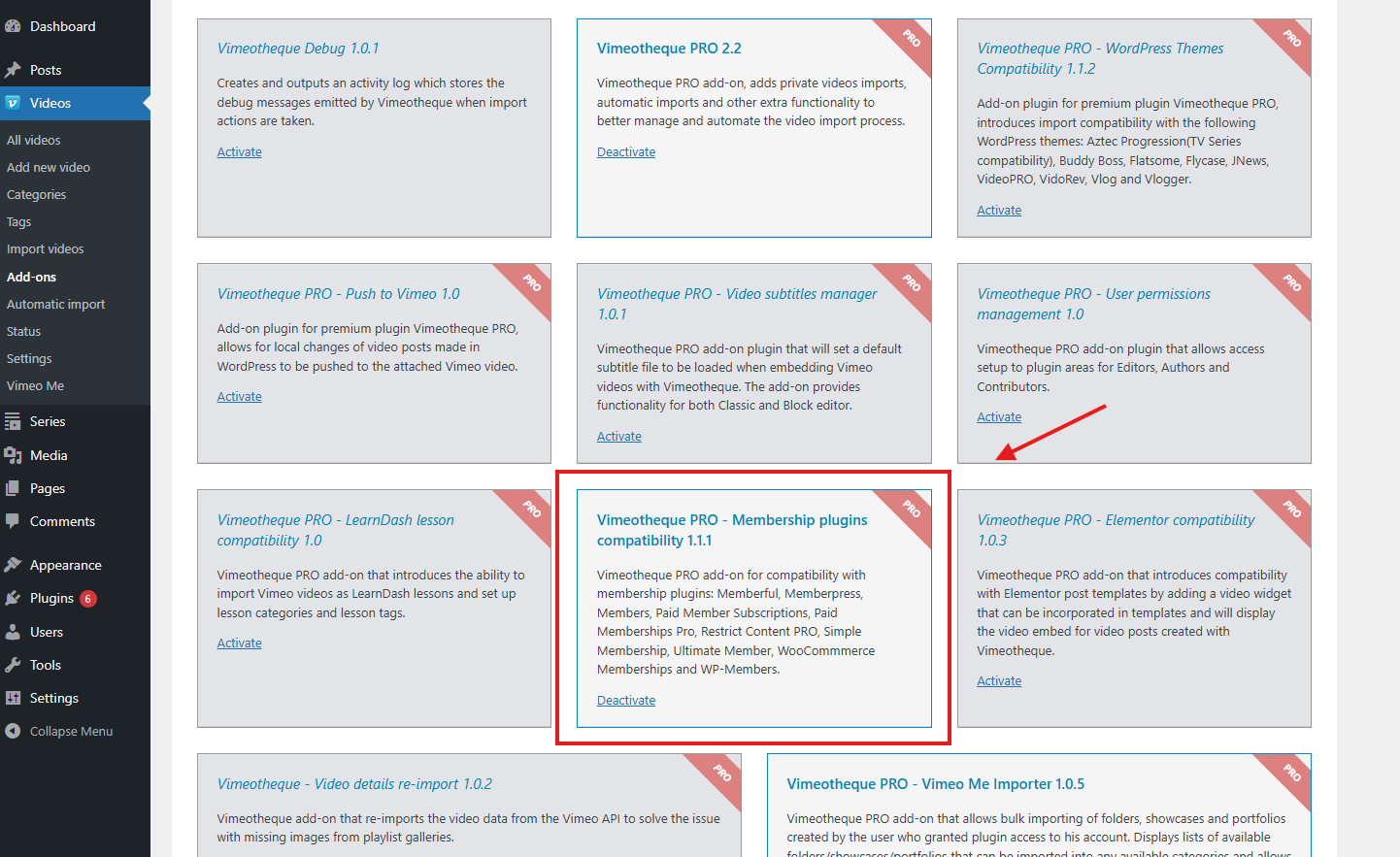
With a valid Vimeotheque PRO license active, go to Vimeotheque → Add-ons in your WordPress admin. Find the Membership add-on in the list and click Install. Activate the add-on after installation.
Step 2: Configure MemberPress Membership Plans
If MemberPress is not yet installed, add it from the WordPress plugin repository or upload it directly. Once active, go to MemberPress → Memberships and create at least one membership plan. Set the pricing, billing interval, and any trial period that fits your business model.
You can create multiple tiers. For example: a free plan with access to sample videos, and a paid plan that unlocks all imported Vimeo content.
Step 3: Create an Access Rule for Vimeo Video Posts
Go to MemberPress → Rules and click Add New. In the Protected Content field, select All Vimeo Videos, which is the custom post type registered by Vimeotheque. Under Access Conditions, select the membership plan that should have access. Save the rule.
With this rule in place, any visitor without an active membership will see your configured unauthorized message instead of the video content.
Step 4: Import Your Vimeo Videos
With the membership rules in place, import your Vimeo videos using Vimeotheque. Each imported video post will automatically fall under the protection rule. New videos imported in the future will also be protected without any additional configuration.
For large video libraries, use the Vimeotheque membership integration alongside the automatic importers in PRO to keep your protected content library updated without manual effort.
Frequently Asked Questions
Does video protection work with membership plugins other than MemberPress?
The Vimeotheque Membership add-on is designed specifically for MemberPress. However, because Vimeotheque imports videos as standard WordPress posts, other membership plugins that control post-level access can also restrict them, even without the dedicated add-on.
Can I protect only some videos and leave others public?
Yes. MemberPress rules can target specific post categories or individual posts. Create a category for premium video posts and apply the access rule only to that category, leaving other videos publicly accessible.
What happens when a non-member tries to access a protected video?
MemberPress shows a customizable unauthorized access page with a login or sign-up prompt. You can configure the messaging and redirect behavior in the MemberPress settings.
Does the protection prevent direct Vimeo embedding?
The protection restricts access to the WordPress post. If a visitor knows the original Vimeo video URL, they can still access it on Vimeo directly. To prevent this, set the video’s privacy on Vimeo to “Hide from Vimeo” and restrict embedding to your domain only.
Will new videos imported by the automatic importer also be protected?
Yes. Because the access rule targets the Vimeotheque video post type as a whole, any new video imported in the future is automatically protected under the same rule.