
Vimeo Folders are a way to organize your videos inside your Vimeo account. Unlike Showcases, which are designed for public sharing, Folders are private organizational containers intended for your own use. With Vimeotheque PRO, you can import the entire contents of a Vimeo Folder into WordPress in a single operation, turning each video into a structured WordPress post.
What Are Vimeo Folders
Vimeo Folders are private collections visible only to you and collaborators on your Vimeo account. They are not publicly accessible like Showcases. You can organize your upload library into folders by project, client, series, or any other grouping that makes sense for your workflow. Vimeotheque PRO queries your Vimeo account for accessible folders and lists them directly in the importer interface.
Requirements for Vimeo Folder Import
- Vimeotheque (free) installed and configured with valid API credentials
- Vimeotheque PRO active with a valid license
- OAuth authorization completed in Vimeotheque → Settings → API (required to access private Vimeo content including folders)
- Vimeo account with at least one folder containing videos
Step 1: Complete OAuth Authorization
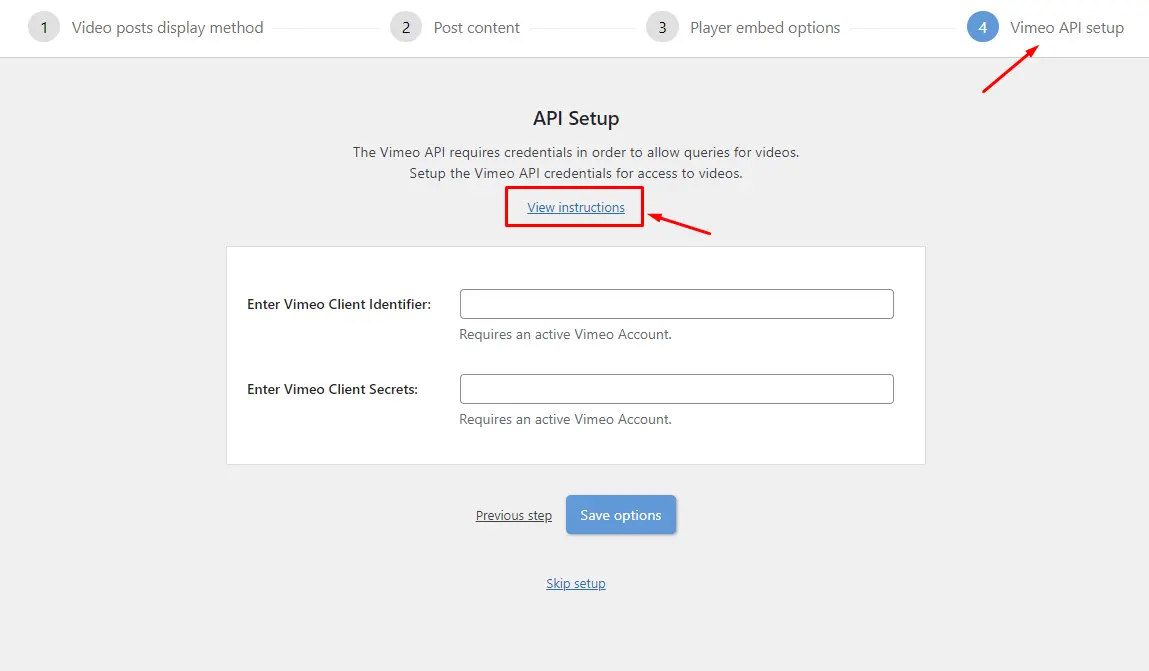
Folder access requires an authorized OAuth connection because folders are private. In Vimeotheque → Settings → API, click the Authorize the plugin on Vimeo link, complete the consent screen on Vimeo, and return to WordPress. The plugin stores the access token automatically.
Step 2: Open the Folder Importer
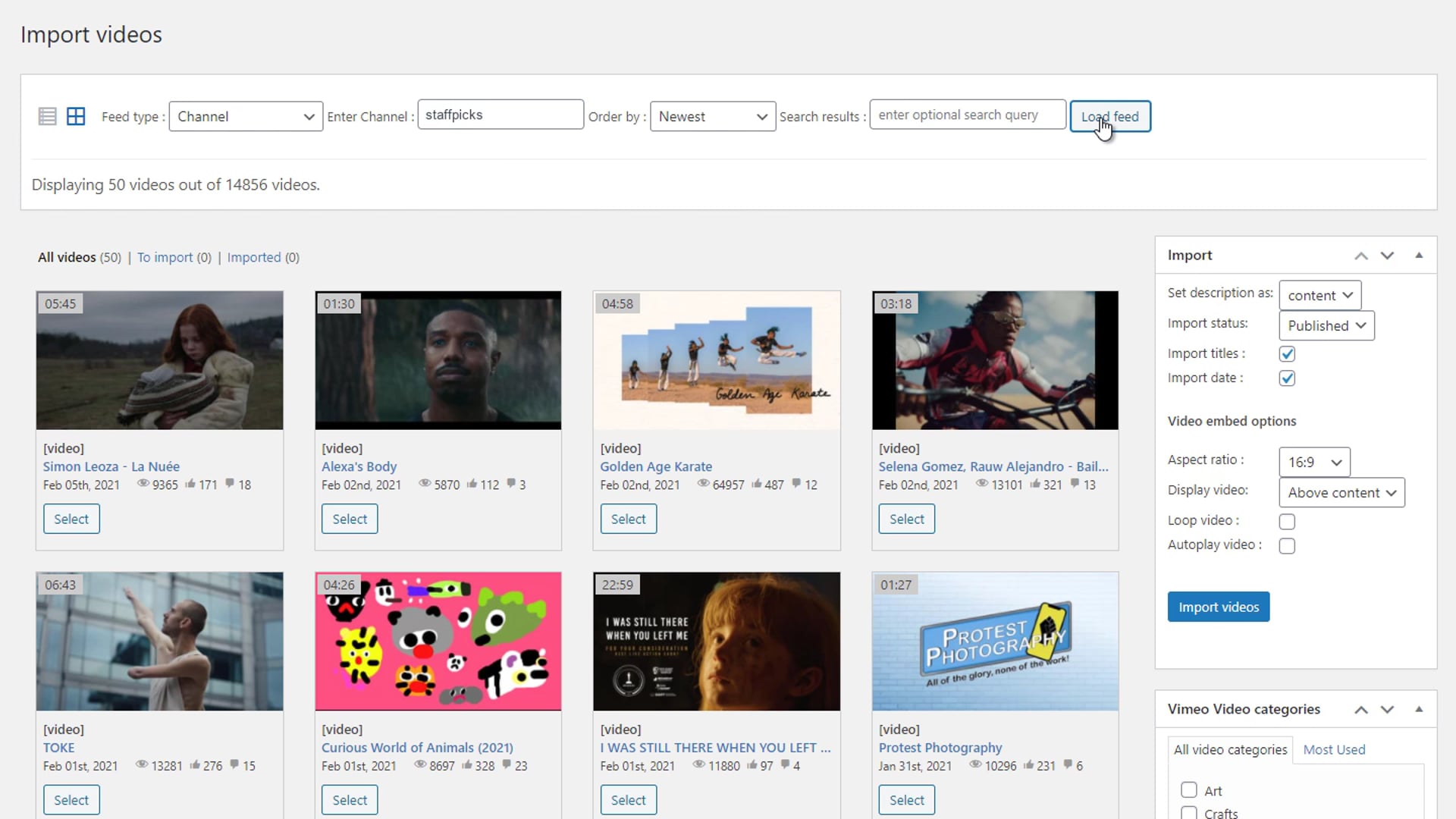
Go to Vimeotheque → Import Videos → Folders. The importer will query your Vimeo account and display a list of all accessible folders. If no folders appear, confirm that the OAuth authorization was completed successfully.
Step 3: Select the Folder and Configure Import Settings
Click on the folder you want to import. Before running the import, configure the post settings:
- Post status: publish or draft
- Post category and tags
- Whether to import the thumbnail as featured image
- Whether to import the description as post content
These settings determine how each video post will appear in WordPress after import.
Step 4: Run the Import
Click Import to begin. Vimeotheque processes the folder contents and creates a WordPress post for each video. For large folders, the import may take several minutes. A progress indicator shows the current status.
After the import completes, you can manage all imported videos from the Vimeotheque video post list in WordPress admin.
Automating Folder Imports
Vimeotheque PRO includes an automatic folder importer that runs on a schedule. Once configured, it checks the folder periodically and imports new videos automatically. This eliminates the need to manually trigger imports every time you upload new content to Vimeo. See the Vimeo folder import page for full details on the automatic importer setup.
Frequently Asked Questions
Can I import from multiple Vimeo Folders at the same time?
Each importer instance handles one folder at a time. You can set up multiple automatic importers in Vimeotheque PRO, each targeting a different folder, and they will run independently on their configured schedules.
What is the difference between a Vimeo Folder import and a Showcase import?
Folders are private organizational containers visible only to you. Showcases are curated, optionally public collections designed for sharing. Both can be imported with Vimeotheque PRO, but the import process is the same for both types.
Will already-imported videos be duplicated if I run the folder import again?
No. Vimeotheque checks whether a video has already been imported by its Vimeo ID before creating a new post. Re-running the import will only create posts for new videos added to the folder since the last import.
Can I import a Vimeo Folder without completing OAuth authorization?
No. Folders are private and require an authenticated API connection. You must complete the OAuth authorization step before the folder importer can query your Vimeo account.
Does importing from a folder affect the videos on Vimeo?
No. Vimeotheque reads video data from Vimeo through the API. It does not modify, move, or delete any content on your Vimeo account.