
Building a video website with Vimeo and WordPress is a straightforward process when you use the right tools. The key difference between a basic WordPress site with embedded Vimeo videos and a real video website is structure: each video becomes a proper WordPress post, not just an embed pasted into a page. This is what the Vimeotheque plugin enables.
Why Build a Video Website on WordPress Instead of Staying on Vimeo
Vimeo is an excellent hosting platform, but it is not a content website. Your own WordPress site gives you control over SEO, layout, branding, and monetization. When you import Vimeo videos into WordPress, each video becomes a standard WordPress post with a title, description, categories, tags, and a thumbnail. This structure is what allows search engines to index your video content and drives organic traffic to your site rather than to Vimeo.
Step 1: Install and Configure Vimeotheque
Install Vimeotheque from the WordPress plugin directory. After activation, the plugin will guide you through the initial setup: connecting your Vimeo API credentials, selecting which video metadata to import, and configuring the video player embed settings.
The API connection requires a Vimeo developer app. Create one at developer.vimeo.com, copy the Client ID and Client Secret, and enter them in Vimeotheque → Settings → API.
Step 2: Import Your Video Library
With the API connected, you can begin importing. For individual videos, use the single video importer under Vimeotheque → Add New. For bulk imports, Vimeotheque PRO provides importers for Vimeo Folders, Showcases, and Portfolios that can import your entire library in one operation.
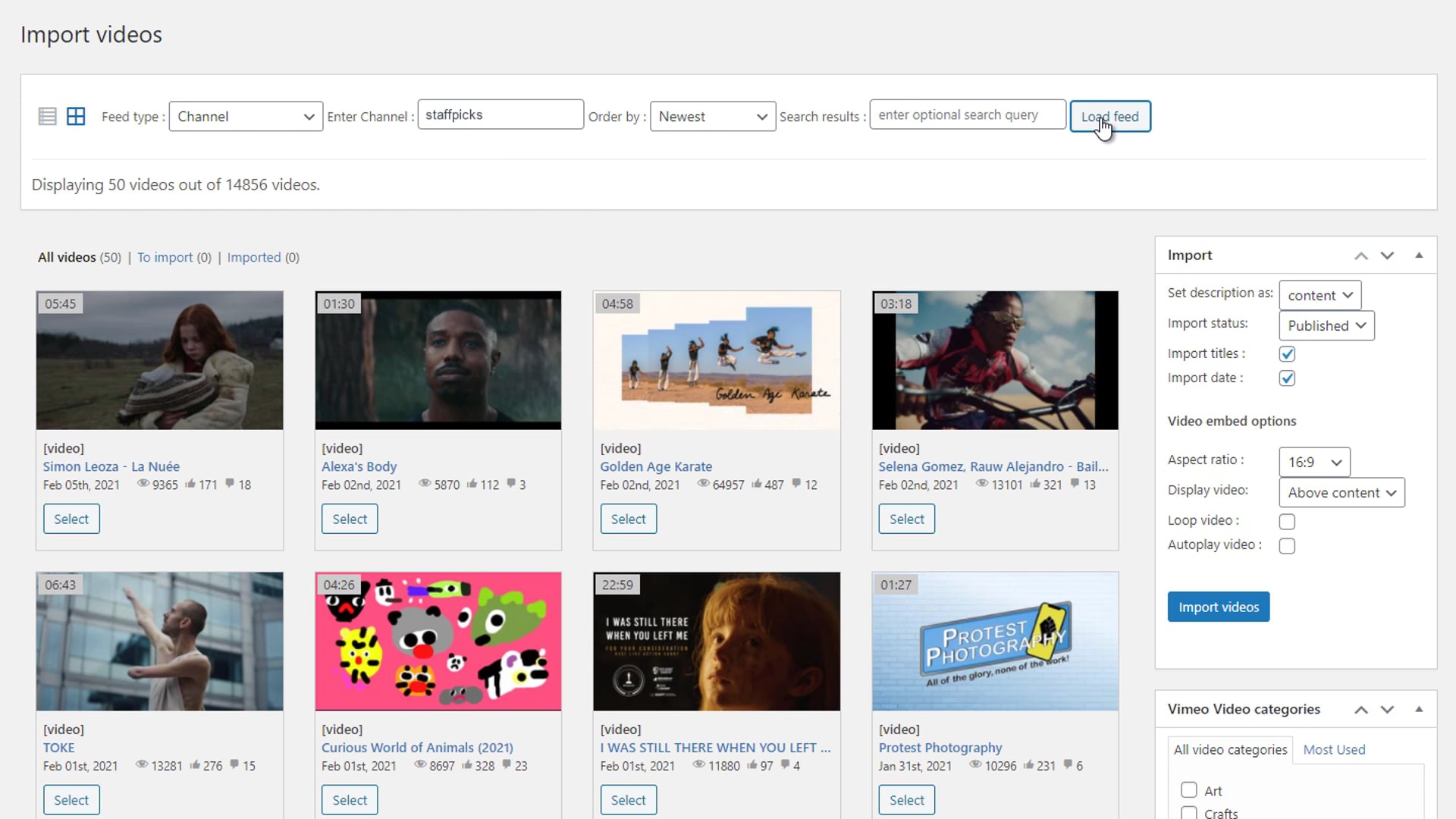
Each imported video automatically gets the Vimeo player embedded in the post, using your configured embed settings. No additional coding is required.
Step 3: Organize Your Video Content
Use WordPress categories and tags to organize your video library. This creates the foundation for structured video archives, filterable galleries, and topic-specific landing pages. Categories also power Vimeotheque’s gallery and playlist displays, allowing you to build dynamic video collections without writing any code.
Step 4: Display Videos with Galleries and Playlists
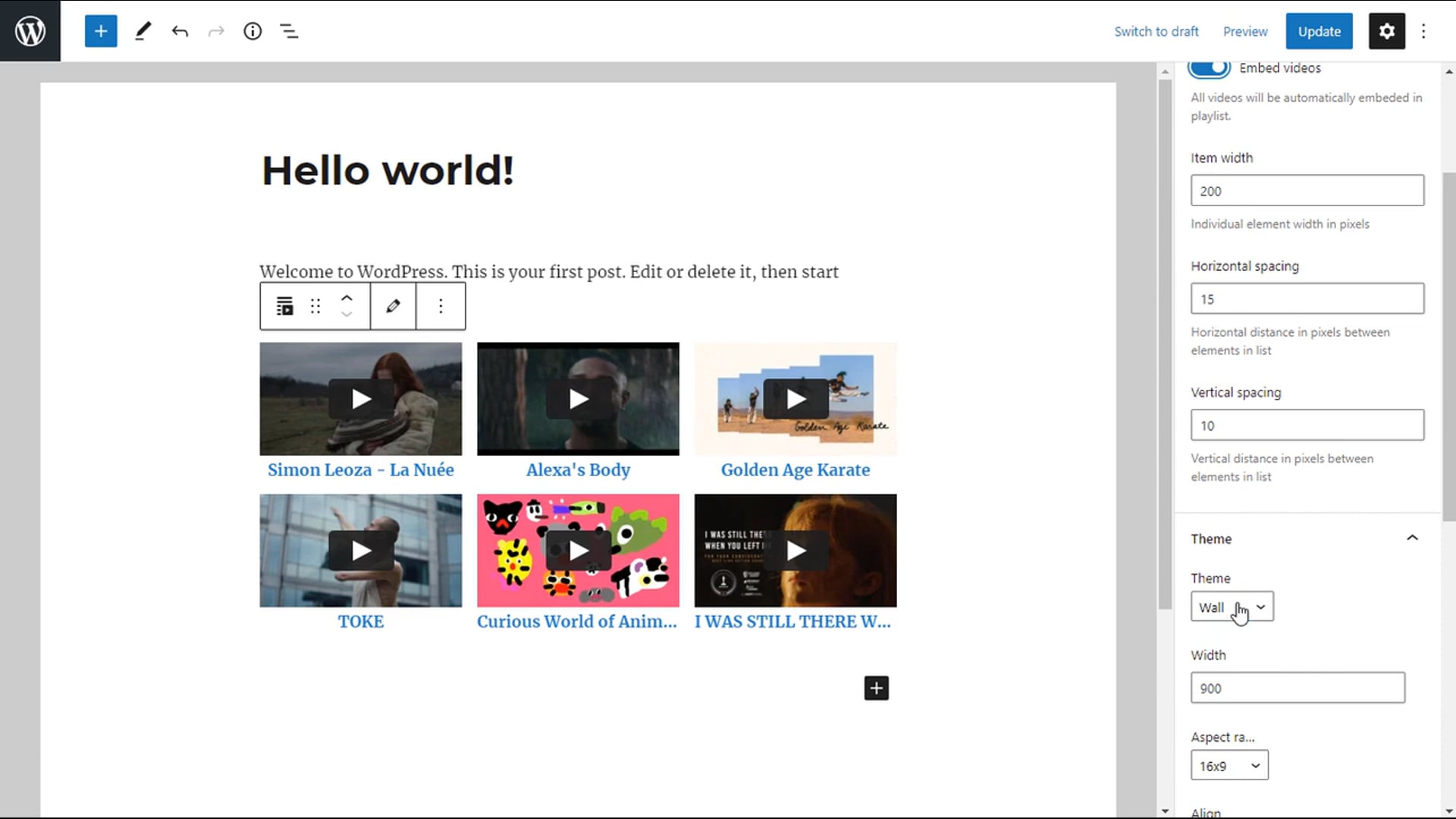
A video website needs more than individual post pages. Vimeotheque provides shortcodes and Gutenberg blocks for displaying video galleries from WordPress posts and building video playlists. These display elements pull from your imported video posts dynamically, so as you add new videos, your galleries and playlists update automatically.
Step 5: Automate Future Imports
The most scalable video websites automate the content pipeline. With Vimeotheque PRO, configure automatic importers for your Vimeo Folders or Showcases. Set a sync interval — daily, for example — and new videos you upload to Vimeo will appear as WordPress posts automatically, without any manual intervention.
This automation is what makes Vimeotheque different from simply embedding videos manually. The automatic Vimeo sync turns your WordPress site into a dynamic, self-updating video platform.
Optional: Restrict Access with Membership
If you want to monetize your video content, the Vimeotheque Membership add-on integrates with MemberPress to gate access to video posts behind paid membership plans. This works automatically for all imported videos without per-post configuration.
Frequently Asked Questions
Do I need coding skills to build a video website with Vimeotheque?
No. Vimeotheque handles the API connection, import process, and video embedding without any coding. Galleries, playlists, and layouts can all be configured through the WordPress admin interface.
Can I use any WordPress theme with Vimeotheque?
Yes. Vimeotheque works with any standard WordPress theme. Themes with dedicated video post support will provide a better out-of-the-box display, but the plugin is not theme-dependent.
How many videos can I import with Vimeotheque?
There is no hard limit imposed by the plugin. The practical limit is determined by your Vimeo API rate limit and your server’s processing capacity. Large libraries of hundreds or thousands of videos can be imported in batches over multiple sessions.
Does the video stay on Vimeo or is it moved to WordPress?
The video file stays on Vimeo. Vimeotheque imports the metadata and embeds the Vimeo player in the WordPress post. You benefit from Vimeo’s CDN and streaming infrastructure while owning the content presentation on your site.
Can I display Vimeo videos in Elementor page layouts?
Yes. The Vimeo Elementor integration in Vimeotheque allows you to build custom video layouts using Elementor widgets, without any custom code.